4.6 How to Package a Use Case Solution
Up to this point we have built use cases and turned them into reusable templates — but always inside the environment we were working in. A solution that only exists in the environment it was built in is not yet a solution anyone else can use.
Packaging closes that gap. You export a solution as an OLIVE Connectivity Bundle (OCB) and import it elsewhere, so that what you built stays reusable, portable and consistent across deployments.
What packaging is for
The primary purpose of an OCB is delivery: moving a finished solution from where it was built to where it will be used.
Connectivity engineers develop in an OLIVE development deployment — a single-user environment with no login, where you can iterate quickly without authentication or tenant boundaries getting in the way. That is the right place to build, but it is not where the solution runs for real. When the solution is ready, you package it as an OCB and import it into a production deployment, where it runs for actual users under authentication and access control.
This is the path the rest of this page describes:
Build in development → export an OCB → import into production
Two further uses follow from the same mechanism:
- Sharing and reuse — handing a packaged solution to another team, another tenant, or another customer's OLIVE installation.
- Backup — capturing the state of a repository, or of one use case within it, so it can be restored later.
These are genuinely useful, but they are consequences of the packaging mechanism rather than the reason it exists. If you only ever think of the OCB as a backup format, you will miss its main job.
What We Learn
On this page we learn:
- What an OLIVE Connectivity Bundle contains
- How to package a solution from an OLIVE development deployment
- How to import a solution into an OLIVE production deployment, and what has to be reconciled on the way
What an OLIVE Connectivity Bundle Contains
An OLIVE Connectivity Bundle (OCB) is a self-contained package of everything needed to recreate a solution in another OLIVE environment. It has three parts.
Connectivity elements. A JSON list of instances of the OLIVE data metamodel — for example:
- datapoint constructs
- connector constructs
- authentication data
- templates
- datapoint and connector presets for templates
Microfrontend components. The UI components belonging to the packaged solution are included, so a scenario's user interface travels together with its connectivity rather than having to be deployed separately.
A manifest. A record of when the export occurred and which export version produced it. This is what lets the importing environment tell whether a bundle came from a compatible version, and what makes any given bundle traceable back to a point in time.
Authentication data is part of the bundle, and by default it is stored in plain text in the exported file. An unencrypted OCB is therefore a file that carries secrets: treat it accordingly, and prefer exporting with a password (see Exporting below).
Export and Import OLIVE Connectivity Bundles (OCB)
You can export and import OLIVE Connectivity Bundles (OCB) directly in the connectivity editor, under Service Management, where you choose between Export as OLIVE Connectivity Bundle (OCB) and Import OLIVE Connectivity Bundle (OCB).

Exporting
-
Exporting requires the editor or admin role in a production deployment. In a development deployment there is no login, so anyone can do it.
-
Exports are triggered for all currently visible items in the connectivity editor. The export dialog restates this before you confirm.
- Any active filters or searches (by tags, object types, or keywords) are applied to the export.
- This is how you package one use case rather than everything: filter by the tags of your use case, confirm that what you see is what you want to ship, and export.
- To export your entire repository — for a backup, for example — remove all filters before starting the export.
-
By default, authentication information is stored in plain text in the exported file.
- You can export OLIVE Connectivity Bundles (OCB) and backups encrypted by providing a password. Do this whenever the bundle leaves your machine.
Because the export takes whatever the editor currently shows, the quality of your packaging depends on the quality of your tagging. Tagging the elements of a use case consistently while you build it is what makes a clean, single-purpose OCB possible later.
Importing
- Import through Service Management → Import OLIVE Connectivity Bundle (OCB) in the connectivity editor of the target environment.
- If the bundle was exported with a password, you will need that password to import it.
- In a production deployment, only an administrator may import. The admin role is required — the editor role is not sufficient. Why export and import sit with different roles is described in Roles In OLIVE – Platform Permissions.
If you are an engineer with the editor role but not admin, you export the OCB yourself and deliver the file to your Tenant Admin, who imports it into the target tenant.
When elements already exist
Importing into a repository that is not empty will usually produce collisions — elements in the bundle that already exist in the target.
OLIVE does not resolve these silently. Before anything is written, you are shown an overview of the collisions, and you decide how to proceed:
- Overwrite all — the colliding elements in the target are replaced by the versions from the bundle.
- Ignore the colliding elements — the existing elements in the target are kept, and the colliding elements from the bundle are not imported.
The decision applies to the collisions as a whole, not element by element, so read the overview before choosing. Non-colliding elements from the bundle are imported either way.
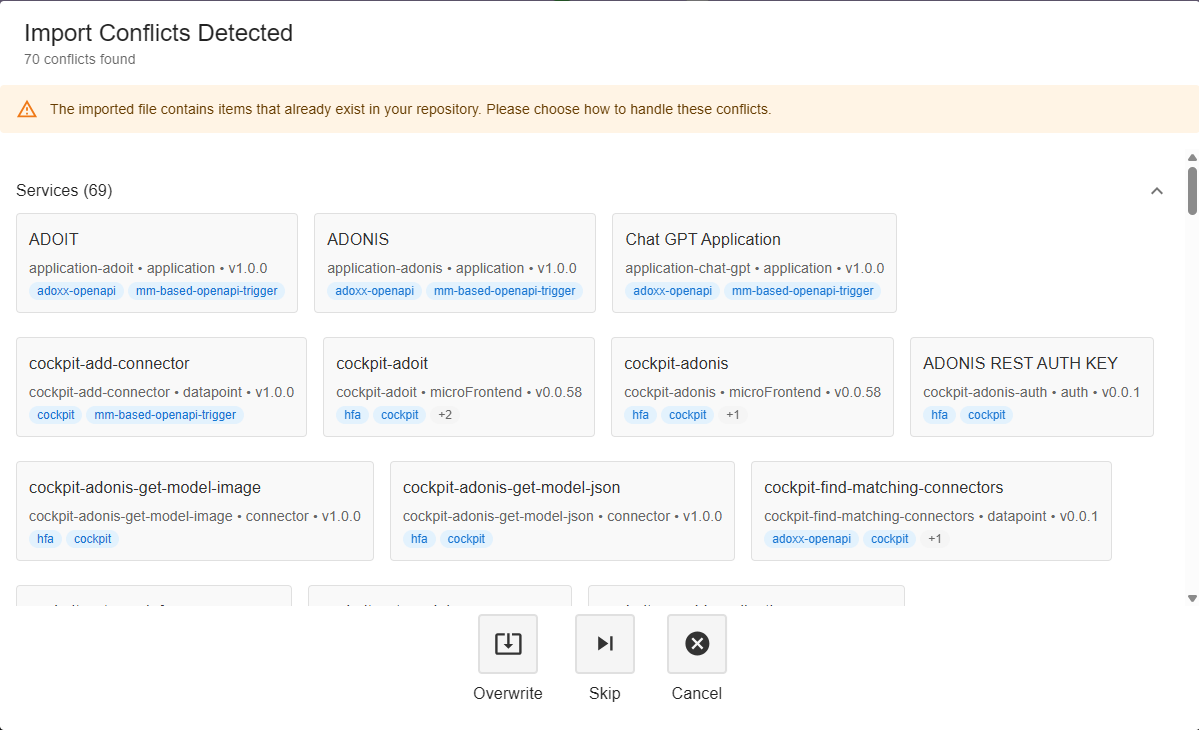
On a repeat import — shipping a second version of a solution into a tenant that already has the first — the collision list is the change set. It is the clearest view you get of what this import will actually alter in the target environment.
From a Development Deployment to Production
This is the workflow the OCB exists for. Development and production deployments differ in ways that affect what you packaged, so a few things need attention on the way across.
1. Build and iterate in development
Work in the development deployment, where there is no login and no tenant boundary. Tag the elements that belong to your use case as you go.
2. Export the solution
Filter the connectivity editor to your use case's tags, confirm the visible set, and export an OCB — with a password. In a development deployment anyone can do this; in a production deployment it requires the editor or admin role.
3. Hand the bundle to an administrator to import
In a production deployment only an admin may import, so unless you hold that role yourself, this step is a handover: give the OCB file — and the password, if you encrypted it — to your Tenant Admin, who imports it into the target tenant's connectivity editor and resolves any collisions.
4. Reconcile what differs between the two environments
A solution that worked in development can still fail in production, for reasons that have nothing to do with the packaging. Check these before declaring it done:
| What differs | What to do |
|---|---|
| Secrets | Development credentials do not belong in production. Replace them with references to the production environment's secrets, rather than carrying exported plain-text authentication data into a live tenant. See Authentication and Secrets Management. |
| Datapoints that call OLIVE's own APIs | They need an auth entry of type oidc in production. See the first of the two changes below. |
| Whatever triggers the connectivity | It is not part of the bundle and has to start authenticating in production. See the second of the two changes below. |
| Target systems | Endpoints, host names and identifiers usually point at test systems in development. Re-point them, ideally through template parameters rather than by editing definitions. |
| Outbound reach | OLIVE blocks calls to internal addresses. Public destinations are unaffected, but a datapoint that reached an internal test system in development will be refused in production — that is a case to raise with your OLIVE operator, not something to work around. See Security in Connectivity Engineering. |
| Roles and permissions | Development has no authentication and the single user effectively holds every role; production distinguishes user, editor and admin, and they are genuinely different permissions. Anything that assumed unrestricted access needs the right role assigned by your Tenant Admin. |
| Microfrontend components | Components run inside the authenticated user's browser session, so they execute inside the platform's trust boundary. Expect your Tenant Admin to review imported components before enabling them in a production tenant. |
The two changes you will almost always have to make
Most of the table above is situational. Two items are not. They follow from the difference between two kinds of authentication that are easy to conflate:
- Authenticating to the systems your connectivity calls — OpenAI, ADONIS, a customer's REST API. This is required in both deployments, because the target system demands it, not OLIVE. You create an Auth entry and reference it from the datapoint from your very first scenario: the Hello World example needs an OpenAI token in a development deployment just as it does in production. Moving to production changes nothing here except, usually, which credentials the entry holds.
- Authenticating to OLIVE itself — its public APIs and its user interfaces. This is the part that differs. A development deployment has no login and accepts anonymous calls to its public APIs; a production deployment requires a token for both.
Both changes are therefore on the OLIVE-facing side. Neither is a defect, and neither is visible while you develop. Plan both into the handover rather than discovering them during the first production test.
1. Datapoints that call OLIVE's own APIs need an auth entry
A connectivity solution often calls OLIVE itself through a plain HTTP datapoint: reading or writing a file through file-storage-service, keeping state in session-memory, triggering another element through data-orchestrator, reading entries from repository. In development this works precisely because nothing asks for credentials. The datapoint definition does not change when it is imported, so it arrives in production unauthenticated and is rejected — with 401 Unauthorized, or 403 Forbidden when the client is authenticated but lacks the role. This is the single most common reason an imported solution does not run.
What to do:
- Add an Auth entry of type
oidcand reference it from each of these datapoints. Use the least privileged client that does the job —olive-gateway-usercovers almost every datapoint that calls an OLIVE API. - Add the reference while you are still developing, even though the development deployment ignores it. Reviewing every HTTP datapoint whose URL contains an OLIVE service name is a one-minute check.
- Keep the API base URL and the auth entry configurable — through an
environmentelement, a placeholder or a template parameter — so that the same definition works in every environment. - Do not switch the URL to a cluster-internal service name instead. Internal addresses are blocked before the request leaves; see Security in Connectivity Engineering.
How to set this up, with a complete auth entry and datapoint: Calling OLIVE's own APIs from connectivity.
2. Whatever triggers the connectivity has to authenticate
A solution is only useful once something invokes it, and that something stays outside the OCB — an Excel workbook, a .bat or shell script, a Bruno collection, a partner system, a scheduled job in another system. In development it called data-orchestrator/v1/invoke anonymously; in production the same call returns 401 Unauthorized. The caller has to perform a client-credentials flow with a client ID and secret from your Tenant Admin, and send the resulting bearer token with every invoke, poll and result call.
Making the trigger authenticate does not authenticate the calls the solution makes while it runs — that is the first change, inside the imported connectivity.
Two kinds of caller need no change:
- A UI component (pilet) rendered inside the platform runs in the browser session of an authenticated user and reaches the orchestrator with that user's permissions, so it needs no credentials of its own. See Client Microfrontends.
- Connectivity scheduled inside OLIVE is executed by the platform itself, so there is no external caller to authenticate. See Scheduling Execution of Connectable Elements.
What each kind of caller has to change, which values it needs and how to keep the secret out of the trigger: Triggers that worked without credentials in development.
5. Verify in production
Execute the use case end to end in the target environment before handing it over. An import that completes without error is not the same as a solution that runs.
Test it the way it will actually be used — through its real trigger, with the production client credentials — and not only from the connectivity editor or the Connectivity Tester. Invoking an element from inside the editor exercises the connectivity but not the caller, and the caller is one of the two things that had to change.
Earlier versions of OLIVE distinguished between a dedicated common assets sandbox — holding templates, presets and microfrontend components shared by all tenants — and tenant sandboxes holding instantiated, tenant-specific use cases. Export and import had to be triggered in the matching sandbox.
OLIVE 1.3 no longer deploys a dedicated common-assets tenant, so that distinction no longer applies. Reusable assets are shared through export and import between ordinary tenants; if your organisation keeps one tenant as its shared library, ask your Tenant Admin which one it is.
Related
- How to Customize and Parametrize Connectivity — templates and parameters, which are what make a packaged solution adaptable at its destination
- Authentication and Secrets Management
- Security in Connectivity Engineering