6.7.1 API Access with OIDC Clients
Accessing OLIVE APIs in Production Environment Deployments
Production deployments of OLIVE use Keycloak to provide authentication and authorization, so access to the OLIVE APIs there requires a token. As part of tenant onboarding, the following client applications are provisioned in the tenant's Keycloak realm. All three support machine-to-machine (M2M) OpenID Connect (OIDC) flows and can therefore be used to obtain access tokens for OLIVE's public APIs.
| Client | Realm role | May |
|---|---|---|
| olive-gateway-user | none | Read connectivity entries, trigger connectivity and poll jobs, read and write files and session data. It may not create, change or delete connectivity entries. Introduced with OLIVE Platform 1.1.0 |
| olive-gateway | editor | Everything olive-gateway-user may do, plus creating, updating and deleting connectivity entries, and onboarding scenarios |
| olive-gateway-admin | admin | Administrative operations. Note: in the current platform version no public admin-specific APIs are exposed |
olive-gateway-user for anything that only runs connectivityA caller that triggers a connector, polls the job and reads or writes a file needs nothing more. It holds no realm role at all, so it cannot alter the connectivity it executes — which is exactly what you want for a trigger embedded in a spreadsheet, a script or a scheduled job somewhere else.
Reach for olive-gateway only when something genuinely has to write connectivity definitions.
The roles are described in Roles In OLIVE – Platform Permissions; their Keycloak configuration in Roles and Permissions.
For general background on OIDC and the M2M pattern, refer to the OpenID Connect documentation: https://openid.net/developers/how-connect-works/. The clients can be used with API client tools such as Bruno (https://www.usebruno.com/) and curl (https://curl.se/).
Accessing OLIVE APIs using olive-gateway with curl
The following example demonstrates how to obtain an access token for the olive-gateway client and use it to call OLIVE’s public APIs. The commands assume an Ubuntu WSL environment with curl and jq installed.
To perform a machine-to-machine OIDC flow, you need the client secret of olive-gateway. You can obtain this secret either through the Keycloak Admin UI or, if you have an admin account, via the Keycloak Admin API.
First, generate an admin token. Adjust the Keycloak base URL, admin username, and password as required:
KC=https://YOURKEYCLOAKDEPLOYMENT.com

export ADMIN_TOKEN=$(curl -s \
  -d grant_type=password \
  -d client_id=admin-cli \
  -d username=admin \
  -d password='XXXXXXXXXXXXXXX' \
  -d "scope=openid profile email roles" \
  "$KC/realms/master/protocol/openid-connect/token" | jq -r .access_token)
Next, extract the client details of olive-gateway from the tenant realm. Adjust the realm name accordingly (in this example, the realm is multi):
CLIENTS=$(curl -s \
  -H "Authorization: Bearer $ADMIN_TOKEN" \
  "$KC/admin/realms/multi/clients?clientId=olive-gateway")

ID=$(echo "$CLIENTS" | jq -r '.[0].id')

CLIENT_SECRET=$(echo "$CLIENTS" | jq -r '.[0].secret')

echo $ID
echo $CLIENT_SECRET
You now have the client secret. As noted previously, this value can alternatively be viewed in the Keycloak Admin UI.
With the client secret, you can now request an access token for olive-gateway using the client-credentials grant.
Adjust the client_secret and Keycloak realm URL as needed:
TOKEN=$(curl -s -X POST \
  -d grant_type=client_credentials \
  -d client_id=olive-gateway \
  -d client_secret=$CLIENT_SECRET \
  https://YOURKEYCLOAKDEPLOYMENT.com/realms/multi/protocol/openid-connect/token \
  | jq -r .access_token)
With the bearer token, you can now invoke OLIVE APIs. Adjust the deployment URL as appropriate:
curl -v https://api.<YOUROLIVEDEPLOYMENT>/data-orchestrator/v1/invoke \
  -X POST \
  -H "Authorization: Bearer $TOKEN" \
  -H "Content-Type: application/json" \
  -d '{
    "id": "adder-connector",
    "input": {
      "augend": 2,
      "addend": 3
    }
  }'
Accessing OLIVE APIs using Bruno
The process for accessing OIDC-protected APIs in Bruno follows the same pattern as with curl.
You must first obtain an access token, which is then supplied as a bearer token in your API request.
Bruno supports generating such tokens through scripting.
Refer to the Bruno scripting documentation for details: https://docs.usebruno.com/testing/script/getting-started.
The guidance below outlines the general approach and should be adapted to your environment.
Store the following values in Bruno environment variables:
- The URL of the OpenID Connect token endpoint
- The
client_id - The
client_secret
Ensure that the client_secret variable is marked as Secret.
Write a script that requests an access token using the configured endpoint, client ID, and client secret, and then stores the resulting token in a Bruno variable.
Configure the script to execute before the request runs. See: https://docs.usebruno.com/testing/script/script-flow.
The following snippet illustrates how such a token-fetching function could look:
export async function fetchClientToken(clientID: string, clientSecret: string) {
  const authURL = ENV.getAuthURL();
  console.log("Retrieve token from: " + authURL + " for " + clientID);
  const body =
    "grant_type=client_credentials" +
    "&client_id=" + encodeURIComponent(clientID) +
    "&client_secret=" + encodeURIComponent(clientSecret);
  try {
    // @ts-ignore
    const response = await bru.sendRequest({
      method: 'POST',
      url: authURL,
      headers: {
        'Content-Type': 'application/x-www-form-urlencoded'
      },
      data: body
    });

    const token = response?.data?.access_token;
    return token;
  }
  catch (error) {
    console.error("Failed fetching token", error);
  }
  return null;
}
Disclaimer: This example uses the Bruno sandbox and the Bruno API.
Compatibility may vary depending on your installed Bruno version.
The snippet is intended to illustrate the general approach rather than provide a guaranteed drop-in solution.
For guidance on defining and using variables in Bruno, refer to: https://docs.usebruno.com/variables/overview.
In the Authentication section of your Bruno request, select Bearer Token and reference the variable that holds the token.
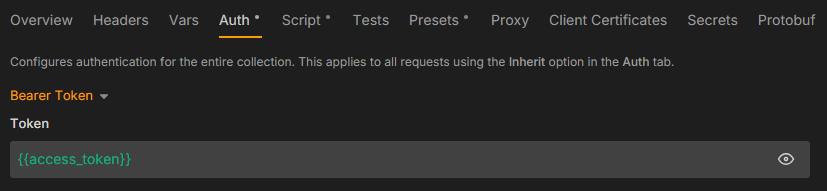
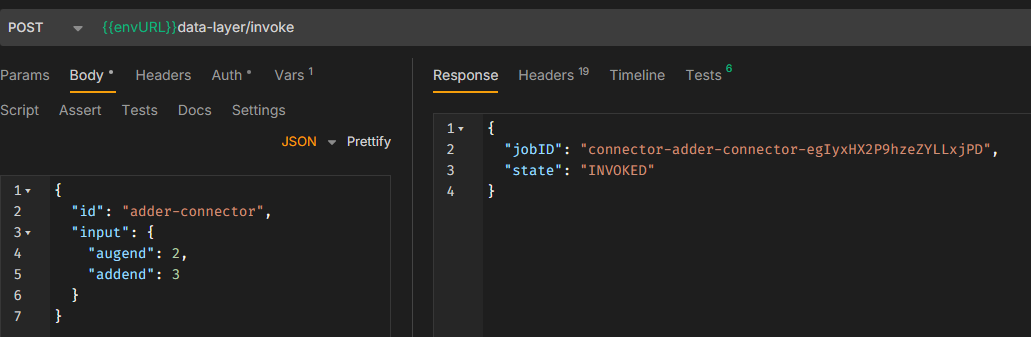
Once the script and variables are configured, you can execute the request normally, and Bruno will automatically fetch and inject the access token.
Triggers that worked without credentials in development
The connectivity travels in the OLIVE Connectivity Bundle. The trigger does not. Why a trigger has to start authenticating when a solution goes into productive use is explained in The two changes you will almost always have to make. This section describes what the trigger needs and how each kind of caller obtains its token.
In a development deployment the trigger can call the public API anonymously:
curl -X POST https://api.<tenant>.<cluster>.<domain>/data-orchestrator/v1/invoke \
  -H "Content-Type: application/json" \
  -d '{ "id": "my-connector", "input": { "value": 1 } }'
The same call against an authenticated deployment returns 401 Unauthorized. It has to obtain a token first and send it as a bearer token, exactly as described in the sections above.
What the trigger needs
Four values, which come from your Tenant Admin:
| Value | What it is |
|---|---|
| Client ID | One of the clients provisioned during tenant onboarding — olive-gateway-user is enough to trigger connectivity and read entries |
| Client Secret | The secret of that client, from Keycloak |
| Token API URL | The OIDC token endpoint of the environment's realm, https://<keycloak-host>/realms/<realm>/protocol/openid-connect/token |
| OLIVE API URL | The base URL of the target environment's public API |
The trigger then performs a client-credentials flow against the token endpoint and sends Authorization: Bearer <token> with every invoke, poll and result call. Tokens expire, so a trigger that runs repeatedly has to refresh rather than reuse one token indefinitely.
A client secret is a credential for the tenant's API. It does not belong in a macro, a .bat file, a spreadsheet cell or a committed configuration file. Use the credential store of whatever runs the trigger — for the Excel example that is the Windows Credential Manager, see Integrating OLIVE Connectivity in Excel.
Which callers this applies to
| Caller | What changes |
|---|---|
| Excel workbook with VB macros | Configure the token endpoint and store the credentials in the Windows Credential Manager: Integrating OLIVE Connectivity in Excel |
| Bruno collection | Fetch the token in a pre-request script and select Bearer Token in the request — see the Bruno section above |
curl or a .bat / shell script | Request a token first, then pass -H "Authorization: Bearer $TOKEN": see the curl example above and Calling OLIVE Platform APIs |
| Another system, a scheduler, a CI job | A client-credentials flow in that system, with its own secret handling |
| A UI component (pilet) inside OLIVE | Nothing. It runs in the browser session of an authenticated user and reaches the orchestrator with that user's permissions. It must not carry a client secret of its own: Client Microfrontends |
Connectivity scheduled inside OLIVE is executed by the platform itself — in an authenticated deployment it uses the olive-gateway client with the editor role — so there is no external caller for you to authenticate. See Scheduling Execution of Connectable Elements.
The datapoints inside the solution are a separate matter
Making the trigger authenticate does not authenticate the calls the solution makes while it runs. An HTTP datapoint that calls an OLIVE API needs its own Auth entry — see Calling OLIVE's own APIs from connectivity.